Guide >
Chat: requests and actions
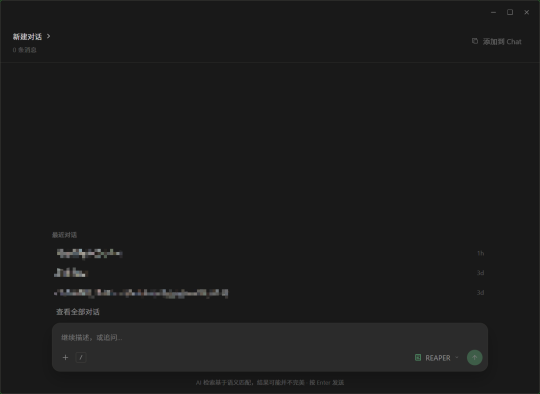
Describe what you need. Chat can find sounds, run a Skill, or help carry out actions in REAPER.
Send your first request
- 01Configure AI in Preferences and test it. For project changes, keep REAPER and its bridge running too.
- 02Select REAPER in Chat’s host menu. Hosts marked Coming soon cannot be used yet.
- 03Name the target and result, for example: “Make three copies of each of the four selected audio Items, vary the pitch slightly, and preserve the originals.”
- 04Review the explanation, sound candidates, or proposed actions before deciding to run them.
Choose a Skill for a sound task
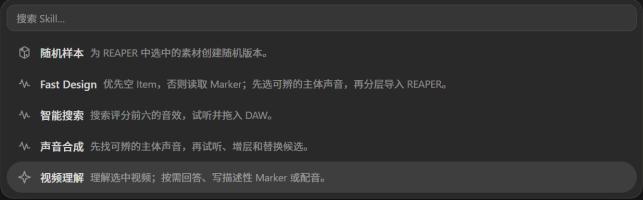
Open the Skill menu, choose a task, and describe the result. Only currently available Skills can be selected; a disabled item is not a working feature. You can also ask REAPER usage questions without choosing a sound task.
Drop audio into Chat to find similar sounds
- 01Drag reference audio into the input area and check that it appears as an attachment.
- 02Send it directly to search for similar audio, or add a request such as “shorter” or “make it wooden.”
- 03Audition the returned sound cards and drag a suitable asset into your DAW.
Open Chat in its own window
With an active Full Version license, double-click ReaHanson at the app’s top left to open a separate Chat window. Place it beside REAPER without keeping the full app window in front.