Guide >
Plugins: browsing and effect chains
Browse plugins installed in REAPER, inspect screenshots, and assemble a chain before importing it.
Scan plugins and capture screenshots
- 01In Preferences → Plugins, check the REAPER path and capture settings. Keep the required connection working.
- 02In Plugins, press the camera button, Capture missing. It scans for new plugins, then fills missing screenshots. Wait for completion.
- 03Right-click a plugin to recapture an incorrect image. If automatic capture fails, upload an image manually.
Narrow the list
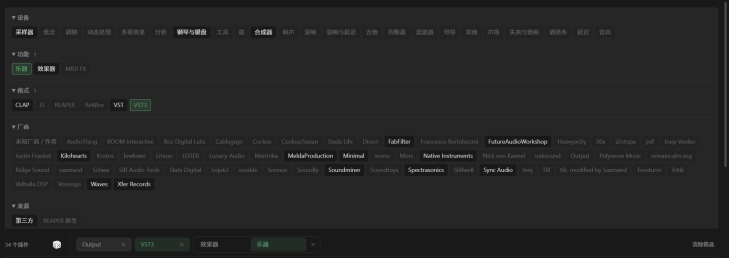
Search by name or open filters. Combine device category, function, format, maker, and source—for example, Effect plus a particular maker. Favorites keeps your regular choices nearby; Recent shows recent use; Hidden shows hidden entries.
Use one plugin
- 01Select a plugin to inspect it, or switch between card and list views.
- 02Drag it onto a supported track or Item target in REAPER.
- 03Check the instance and parameters in REAPER. The app’s screenshot is not an interactive plugin window.
Import an effect chain
- 01Add the plugins you need to the effect chain at the bottom.
- 02Drag to reorder and remove unwanted entries. Clear only empties the pending chain.
- 03Select the target in REAPER, click Import, confirm the target and order, then audition the result.
